


How to Get Ubuntu Virtual Desktops on Windows 7

While Ubuntu runs on my laptop, my desktop system will remain a Windows machine for the foreseeable future.

For a while I had both systems running Ubuntu. As a long time Windows user, this was a pretty big nerd step for me. Booting up everyday for work into Linux instead of Windows took some getting used too. Of course, I still had Windows 7 within quick reach via a virtual machine. That allowed me to jump in and out of Windows when needed - particularly for the use of Adobe Creative Suite.

Yet, as I found out, given my time on the PC is spent mostly within Creative Suite there was not enough justification to deal with the performance hit when working through a VM. Though it was actually very snappy, for graphics design work you need perfection. So before long I was booting into Windows again.

Anyway, that's when I really started to miss Ubuntu. You see, Ubuntu has this incredibly useful interface utility called Virtual Desktops. Which basically allows you to have a 'virtual multi-monitor array'.

This feature is awesome, not just because of how it frees up brand new screen real estate. Or how it enables you to reserve screens for specific apps. Its the lightning fast, elegantly animated navigation system that makes it so cool. It's like the evolution of ALT-TAB, and infinitely better.
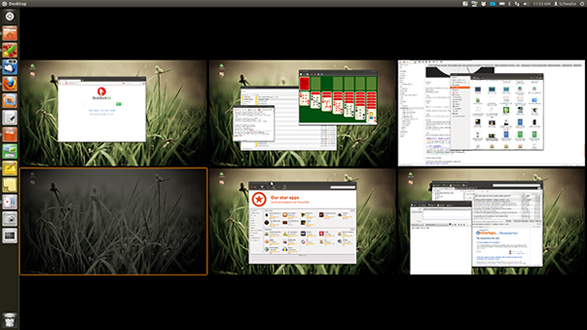
Ubuntu virtual desktops

Above: 6x6 virtual desktops as featured in the Top 6 advantages Ubuntu has over OS X & Windows

Windows 7 has no such feature. Your stuck in a single desktop, for forever. Once your screen gets cluttered you can't just hotkey over to a different screen like in Ubuntu.

Or can you?

VirtuaWin for the win

This handy little program called VirtuaWin brings the virtual desktops concept to Windows. While it's not quite as impressive as the Ubuntu variety, it does the job.

Virtual desktops for Windows 7

Upon installation, you won't really notice much other than a tray icon containing a number. This number is an indication of what screen you're currently on. VirtuaWin supports up to 9 virtual screens. So as you navigate through them, this number will update correspondingly.

Personally, I keep the limit to just 3. My first screen is generally full of sticky notes (digital sticky notes, of course). The second screen is where I get most of my work done. And the third screen is like an overflow I can jump into for some more real estate if things start to get cluttered on screen 2.

As in Ubuntu, the big advantage of VirtuaWin is that both the desktop and your taskbar are isolated on each screen. Which means that if you have say Photoshop open on screen 1, when you goto screen 2 its as if Photoshop is not even open. Its nowhere in sight...

The programs on your other screens are only a quick hotkey away. Which, by the way - is the same as on Ubuntu. CTRL-ALT plus the left or right on your keyboard will swap through screens. And for you, this will quickly becomes second nature, just as ALT-TAB did back in the day.

Of course, its compatible with physical multi-monitor setups too. Which means if you've got a dual monitor setup, each 'virtual desktop' will consist of 2 screens.

Yet, I suspect that the people who can benefit the most from this program are the ones using only a single monitor. Or on a laptop. Cause virtual desktops, whether on Ubuntu or Windows (or Mac, via Mission Control), is basically like having multiple monitors - with the exception you can only see one at a time.

VirtuaWin is a lightweight, free and open source program that can bring one of the best features of Ubuntu to your Windows setup. If you're a nerd using Windows, there's no reason not to be using this.


Schwabe's picture
Schwabe
Twitter
Y hack

Schwabe is an Android app designer and business nerd with a passion for technology, startups, and free market capitalism.

@mrschwabe

5 Comments

I was a long term Virtuawin user but recently discovered Dexpot:

http://www.dexpot.de/

It's free for personal use and doesn't nag. Lots of features - including fancy Compiz-like 'cube' animations if you want them - but a favourite of mine is the 'Taskbar Pager' in plugins and extras.

Highly recommended.

Tom A
Dec 03, 2011
It seems we passed each other from opposites sides. I had been using Dexpot before I discovered VirtuaWin. You're right, its got some fancy animations and such. But after having experienced Ubuntu's amazingly smooth virtual desktop experience - the Dexpot effects just seem... clunky.

Though perhaps I am just picky. Its' all about personal preference. Dexpot does have a lot more customization. And if you just want simple you can basically get it to do the same thing as VirtuaWin, so it may be the best of both worlds.
Schwabe
Dec 03, 2011

I've been using "Windows Pager" now for about 8 months and no big complaints. It behaves very closely to the linux pager. Yes it doesn't have fancy 3d cube rotation, but I've never seen an increase in productivity in my work because of the 3d cube rotation :) It does have support for drag-n-drop between windows (a little buggy) and you can right click on a window to send it to a different desktop. The only kind of odd behavior is when you run MMC programs so GPL editor, AD tools etc.. they will appear on all desktops, not just the one you started it on.

Licence: GPL Version 2

http://windowspager.sourceforge.net/

Dan
Dec 05, 2011
Cool, thanks for the headsup on Windows Pager. The "drag and drop" feature from Linux; being able to drag windows across multiple desktops is a huge virtual desktops feature that is missing VirtuaWin or DexPot.
Schwabe
Dec 06, 2011

Like You said,they will appear on all desktops.

Feb 22, 2012

Add a comment

Plain text

  • No HTML tags allowed.
  • Web page addresses and e-mail addresses turn into links automatically.
  • Lines and paragraphs break automatically.

Comments

  • No HTML tags allowed.
  • Lines and paragraphs break automatically.
  • Web page addresses and e-mail addresses turn into links automatically.
By submitting this form, you accept the Mollom privacy policy.
Nerd Business
Banner

Subscribe to the Nerd Newsletter

Receive nerd business tips & other FREE stuff via email.

Subscribe
  • RSS
  • Twitter