


How to Organize Your Life with OneNote

Microsoft OneNote is easily the best note taking tool available. In this article, I'll show you how to effectively use OneNote to organize your life's information. Ideas, daily notes, business projects, clients & contacts and anything else worthy of typed notes on your screen.
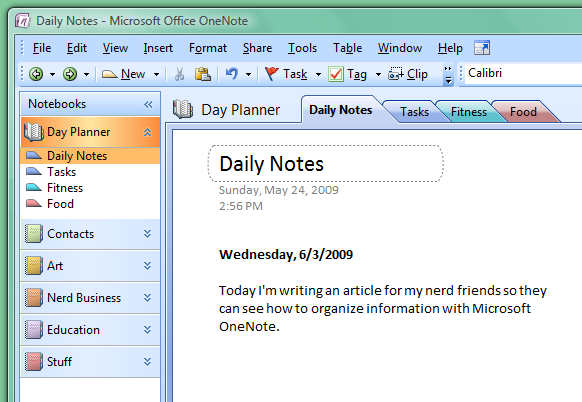
Above: screenshot from Microsoft OneNote
 At this point I assume you have evolved from an old school pen & notepad style of note taking. In fact, if you were like me the next step was to begin organizing your notes in Word documents. Using Word documents to organize notes certainly does work... you'll soon notice however, that this method is just not practical for managing a large amount of notes on a variety of subjects.
 Which is why OneNote is far superior. In a nutshell, OneNote is a word processor that allows you quick access to all of your separate documents (pages) from one simple interface. You can then organize pages in Notebooks, Sections, or Sub sections. Enabling you to have all your notes at the tip of your fingers. Working faster & taking notes more effectively.
Step 1: Get OneNote
OneNote is free to try for 60 days so you can download it right now directly from the Microsoft OneNote homepage. Thereafter the price tag is $99.95 so it certainly is a a good value if you intend to use OneNote how I explain.
Step 2: Use OneNote
OneNote is a rather simple program so getting started is easy. Remember, your objective in using OneNote is to simply take notes & organize them. Anybody can do this - but doing it effectively is another thing altogether. So here is a basic model I use for my own OneNote installation. 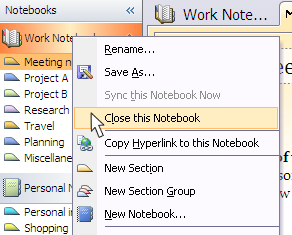
First, feel free to browse through the sample Notebooks Microsoft includes by default. You can keep them handy if you want, but eventually I recommend deleting this clutter by right clicking each Notebook menu and pressing "Close Notebook".
Create a Notebook called Day Planner. Then within that Notebook, create a section called Daily Notes and Tasks.
The Difference Between Daily Notes & Organized Notes
Daily Notes are just that. Each day, our nerdly minds come across interesting things that we'll want to take note of. Ideas, reminders, phone numbers, website links, to-dos, and other random thoughts that need to be typed as notes.
Regardless of what topic, type these kind of day to day thoughts into your newly created Daily Notes section.
You might be wondering, "if we're organizing notes why not create separate sections to organize this information as we type? "
Trust me - it's easier to keep one page for daily notes. And then from these notes you can later extract and organize them into different notebooks & sections.
Particularly when you're first starting with OneNote you don't want to get in the habit of creating a whole plethora of different Notebooks & Sections. Because they'll end up as clutter. My philosophy of note taking is that only key information actually justifies organization. And when you're simply typing notes off the top of your head you are often not ready to determine if exactly what you are writing is relevant. That's why it goes into the Daily Notes: so later you can cut & paste them into their appropriate sections if necessary.
Keeping a Task List
The "to do" list is certainly a fundamental type of note.
Maintaining a big list of tasks can be effective, but it can also be a burden. That is, if you allow yourself to become a slave to it. For my main Tasks section I keep it fairly general - having to do with mostly stuff outside business. For those important projects & clients - I'll keep separate task lists specific to them.
OneNote isn't particularly innovative when it comes to a task list (although it does integrate with Outlook's Task system if you use that, which I do not) but it does have a simple checkbox feature. Let's make a brief list now.
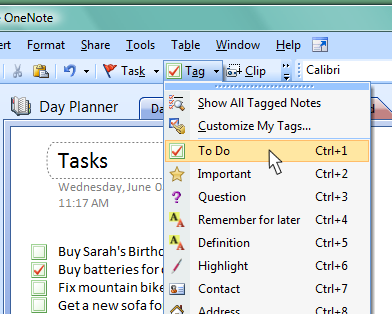
Type a brief list of tasks. One per each line. Then from the the "Tag" menu you can select "To Do" and the line you're currently on will turn into a tidy little checkbox. Click inside the checkbox to control checked/unchecked.
This is about as far as it goes in terms of functionality - yet the visual cue certainly does go a long way.
Time for Business
Organizing information about your projects is crucial for staying on track. Nerds have complex projects on the go. Software apps, website networks, and other technical stuff which requires regular note taking. OneNote is a perfect home for this project related information.
Let's start by creating a Notebook called Projects.
In my project Notebook pictured below, I've created a section for NerdBusiness.com. This section gives me an easy place to write down ideas about my blog Nerd Business. So when I've got a great idea about a new feature or an article I want to write - all I have to do is open OneNote and click this section to begin typing it.
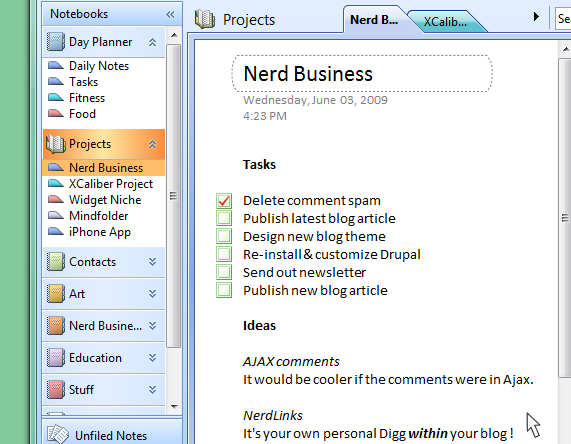
As you can see I've setup the first page of my Nerd Business section to feature it's own task list. If you have a number of projects on the go, having a unique task list for each one is a big advantage.
Just below the Tasks I've got a bold headline for Ideas. I like to classify each idea with a general name so it's easy to remember for a possible future implementation.
Further down from Ideas, I've got another heading for the Log (not pictured). I generally like to keep a project log for documenting progress. So as I bounce around from several different projects throughout the work week I can easily jump back into a project after reviewing the latest status from the log. The log outlines my latest progress & what I was working on last so that I can easily pickup where I left off.
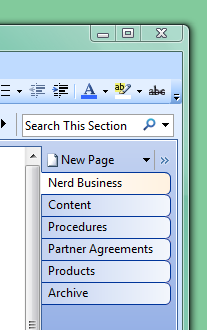 To further organize information for this project, I have created a number of additional pages. These are listed along the right hand side (pictured to the right). One of the pages here is called Content and the notes here are specifically for content related material, such as article ideas or drafts of new articles I intend to publish here on Nerd Business.
Clients & Contacts
As I've demonstrated, keeping a project log is a useful tactic - and the same can be said about keeping a log for your clients. What was said during that last phonecall ? What are some of the requirements you need to complete for this client? The information surrounding a client can get rather extensive - so OneNote fits the bill.
It can also be useful to have notes on just about anybody! A loved one, friends, or family - little notes such as birth dates or special reminders can go a long way.
So let's create a new section called Contacts. In my example below (click to enlarge), I have created the Contacts Notebook and three seperate "Section Groups" to contain Clients, Prospects (people or businesses I am hopeful will become clients), and Providers (professionals & freelancers I collaborate with). Let's take a look at my OneNote page for an imaginary prospect, Mike Duffield.
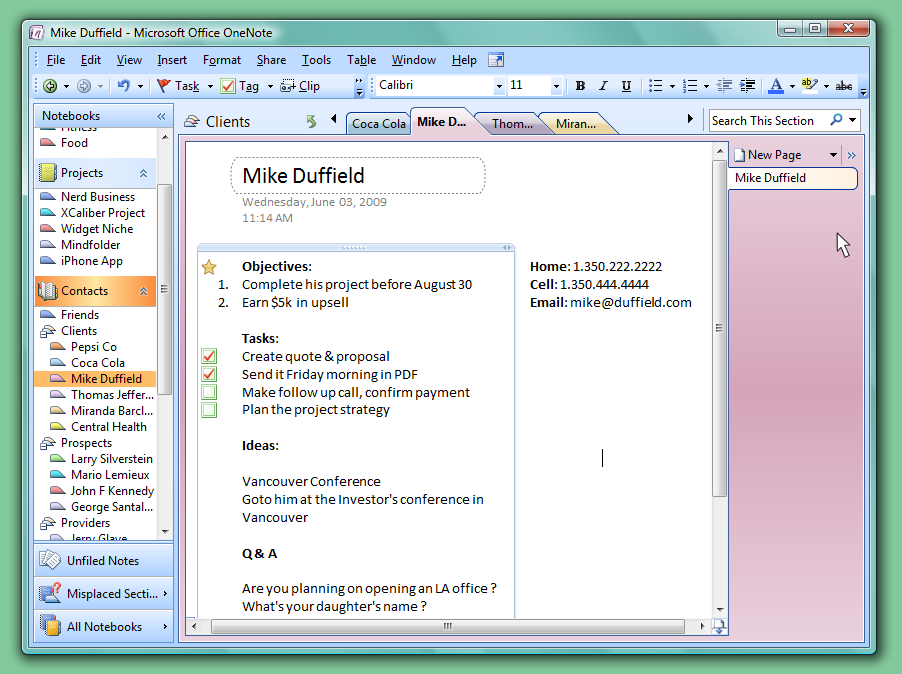
In this example, I've got a project lined up with my client. It's just getting started, so the information is rather light. I've got a couple key objectives I want to keep near the top. His contact info is conveniently placed so I can quickly refer to his number when I'm about to make a call. Tasks and Ideas are also here. And I've even got a Q&A section for questions that I want to ask Mike next time I talk to him.
Any important client or prospect justifies having a simple page like this. There are indeed CRM (customer relationship management) software packages out there which are much more extensive, but personally I enjoy the simple flexibility of a big white open page to type on.
Being Organized is Efficient
Organizational efficiency is something that you need to work on as a skill in itself. And it's something that you never stop doing. So while OneNote is a great solution for note taking, it's not the end all solution. You still have to maintain an effective process for keeping your notes organized. Because after using it for an extended period of time with any regularity you'll eventually experience the clutter factor.
So you've got to be aware of this as you type notes - and consciously organize them as best you can. In fact, I often allocate a big chunk of time each week specifically for organizing notes. As part of an effeciency FOCUS day, which is apart of an even broader strategy for being a well oiled business nerd. A strategy that I would like to reveal for you in an upcoming post. Subscribe to my feed or the newsletter to stay up dated.
“Efficiency is doing things right; effectiveness is doing the right things.”
--Peter Drucker


